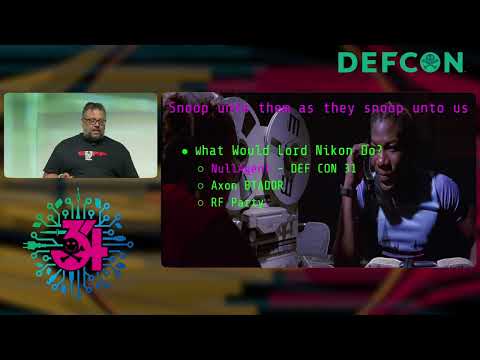
DEF CON SG1 - CSIT Village - Lim Jing Qiang - Registry Stored Payloads For Usb Rubber Duckies
Transcript
Machine-transcribed by YouTube. Expect errors in names, commands and version numbers.
Yeah. >> Uh, that's Sing. Okay. Hey, hi everyone. My name is Sing Chang and I'm a cybersecurity engineer in CSIT. So, uh, today's talk will be about USB Rubber Ducky's or more specifically how we actually, uh, found a way to store payloads within the registry so that we can type less. Okay, uh, let's get started. So, for those who are not familiar with what a USB Rubber Ducky is, it is actually a device that, uh, looks like a typical flash drive but when you plug it into the computer, it actually registers itself as a keyboard. Okay, and after that, it will just inject keystrokes at a very high speed to deliver its malicious payload.
Okay, so, uh, for those who have ever used a USB Rubber Ducky before, right? You'll know that there's actually, uh, a limitation. And the limitation is actually the typing speed. Okay, so in my test environment, the highest speed I could go is up to 750 keystrokes per second. And with that as a limiting factor, it just means that the larger your payload is, the longer it will take to deliver it. Okay, so let's take for example you want to deliver the Invoke-Mimikatz PowerShell script which has around 2 million characters. Uh, it will take around 48 minutes for the Rubber Ducky to finish typing the entire script. And this will give the victim plenty of time to thwart your attack. Okay, so how do people normally overcome such problems?
So the classic solution is to actually to perform, uh, download and execute where you retrieve your script from the internet and then you use the Invoke-Expression to execute it. Okay, but what if you are in an air-gapped environment where you have no internet connectivity? Uh, well, actually you can configure your Rubber Ducky to act as both a keyboard and also a mass storage. And then you store your Invoke-Mimikatz PowerShell script within the mass storage and finally you perform keystroke injection to retrieve the script from the mass storage and execute it. Okay. So all this assumes that, uh, your air-gapped environment has no, uh, restrictions on USB mass storage devices. But what if there are restrictions?
So what if the air gap environment right only allows white listed mass storage devices based on certain properties like vendor ID, product ID, or serial number?
Or what if your air gap environment completely just blocks off mass storage devices on workstation and uses a dedicated kiosk for file transfer? So it seems like storing payloads within a mass storage might not be that of a reliable option in an air gap environment. So since it's not a reliable option, why not just use other USB device classes to store our payload? So one of the classes you can use is the communication device class where we can register ourselves as an internet adapter. And then within it we'll run a web server. Then after that we'll perform key show injection to retrieve the script from the web server.
Or another class we can use is the image class where we register ourselves as a portable device. And then similarly we'll perform key show injection to retrieve the script from the portable device. So all these might sound like they are very good alternatives right? But actually they can be easily blocked too. Yeah. So instead of focusing on device classes right, maybe the question is to ask ourselves is are there any data storing opportunities before Windows identifies the device class? Uh yeah, actually there is some opportunities. So every time when you plug in your USB device to the computer, it actually undergoes this process called device enumeration.
And during the enumeration process, the device actually provides information about itself through standard USB descriptors, which includes the device descriptor, the configuration descriptor, the interface descriptor, endpoint descriptor, and optionally the string descriptors. Okay? So once the enumeration has completed, uh certain information from the descriptor will be populated into the Windows registry such as the vendor ID, the product ID, the serial number, and also the product name. So, since we actually control these values, right? Can we use it to our advantage to store our payload? Uh unfortunately, you can't do that because it's uh because there's some limitation on the number of characters we can use for each of the fields. So, for vendor ID and product ID, right? We can only use like uh four characters. And for serial number and product name, we can use up to 126 characters max.
So, since standard standard USB descriptors are not feasible, right? What about non-standard USB descriptors? Uh so, Microsoft has actually introduced something called uh Microsoft OS descriptors. So, in short, it's used to support devices that doesn't fit the standard USB descriptors. So, example of such devices are your VR controllers, your webcam with depth sensors, or even industrial sensors. So, what's so interesting about this Microsoft OS descriptor is that it allows you to define your custom registry properties for your USB device. So, you can define things such as selective suspend enable value, which is used for power management, or you can define like device interface GUIDs for like binding drivers. So, basically, you can define anything you want.
Okay. So, here we have another data storing opportunity. Okay. So, this is how a Microsoft OS descriptor will look like. So, it it consists of a descriptor set header and also feature descriptors. So, to define a custom registry property, all we have to do is to define the feature descriptor that's used for registry properties. Okay. So, here we will declare the data type, for example, reg_binary. Then, we'll define the property name, for example, long_payload. And finally, we'll put in our property value, which is our actual payload.
And so, there's also another feature descriptor called vendor revision. Uh this is not a mandatory descriptor, but I will just introduce it first because it will come in handy later. Okay, so within this descriptor, you can actually define the vendor revision value. So, let's say we define it to be one. And then this will just tell the OS that, "Hey, these registry properties are for version one of my USB device."
And so, this is how it would look like if you were to use the Microsoft OS descriptor to store a script from PowerShell plot. Okay, so here the script we're storing is the Invoke-PortScan script, which is around 45 KB, and I'm storing it within this registry value called long_payload. Okay, and if you were to edit that value, you can see that the length of that value is indeed uh 45,000 bytes long. And to retrieve that script, we can perform a simple keystroke injection to query for the registry properties of our USB device. Okay, so here I'm actually injecting 90 keystrokes to retrieve the entire Invoke-PortScan script, which is around 45 KB.
So, um storing and retrieving a 45 KB payload might not sound that impressive, so why not try a larger payload?
Uh unfortunately again, >> [laughter] >> there's a size limitation on the whole descriptor set. So, if you can see from the descriptor set header, we can only use two bytes to represent the entire size of the descriptor set. Okay, this also means that our payload can never go beyond 65,000 bytes. So, did we just hit a dead end? Uh actually no, there's a way to get around it. So, we can actually force a device re-enumeration, and then we send in a new set of registry properties, and also a new vendor revision value. Okay, and when the OS detects a new vendor revision value, it will just take whatever registry properties that you send in and add it to the Windows registry.
And the good news here is that your old registry values will still persist. Okay, so let me just illustrate what I meant. So, let's take for example we want to store the WinPEAS script, which is around 96 KB. So, we have to first split the script into two different chunks because it is larger than 64 KB. Okay, so during our first enumeration, we'll set the vendor revision ID to be one and then we'll send in the first part of the WinPEAS script. Okay. And once the enumeration is completed, you can see that our first part of the WinPEAS script is already inside and it's stored in the registry value called long_payload1.
Then for our second enumeration, we'll set the vendor revision ID to be two and then we'll send in the second part of the WinPEAS script. And once the enumeration is completed, you can see that both our chunks now are inside the registry. Okay. And because we have split our script into two different chunks, we'll have to reconstruct it back. So, to do that, we can do a simple key show injection to retrieve the registry key of our USB device. And using that key, we'll query for the first chunk, which is stored inside long_payload1, followed by the second chunk, which is stored in long_payload2. And finally, we'll concatenate both chunks together.
Uh yeah. Okay. So, in total, we will have used 153 key strokes to retrieve our entire WinPEAS script. Okay. So, there's actually one small little problem with this method, which is the more chunks you have, right, the more key strokes you have to inject. So, to overcome that problem, we can actually store those commands to reconstruct into another registry value. Okay. So, here I'm storing it within a registry value called reconstruct. And then after that, we can perform invoke expression on that registry value to retrieve our actual payload. Okay, so you can see here from the PowerShell terminal, initially our variable length is zero, and after we perform the invoke expression, our variable length is now 96,000 bytes long.
Okay, uh next part will be the demo. So, this demo will be a recorded video. Uh I'll be showing you how I actually retrieve the WinPEAS script from the registry and executing it.
Yeah, so now I'm about to plug in the USB device. Okay, so after we plug in, you can see that there's actually a new registry key being created. And after that, the key shot injection will start. Uh sorry, let me just rewind a little bit. Oops.
Yeah, so you can see that the commands I am injecting is actually a simple registry query command that queries for my reg- registry property of my USB device, uh. So, I'm querying for the value reconstruct. And then, when I do a invoke expression, you can see that WinPEAS will start running. Okay, so while the script is running, so let's just take a look at the registry.
So, you can see here that uh we have two chunks here, long underscore payload one and long underscore payload two, which is our WinPEAS script. Okay, so if you edit the value, you can see that the size of the part one is actually 64 KB. And the size of part two is actually around 30 KB.
Okay, and this is our command to reconstruct.
Yeah, so that's all for the demo.
Okay, so the benefits of using this method is that we are not really affected by any USB class based restriction and we are also not restricted to just storing PowerShell script in the Windows registry. You can store other things such as executable files or Python script. Yeah, basically anything you want. Now, how can we defend against such attacks? I could only think of disabling application that allows user to query the registry. So maybe you can disable like reg.exe, command prompt.exe, or powershell.exe. Yeah, but if you have any better ways to
defend against such attack, I welcome you to discuss it with me after the talk. Yeah. Okay, so that's the end of the presentation. I'm open to questions now.
Or if you are shy to ask a question, then we can take it after the talk. Mhm.